Hostma – WHMCS Template Installation

WHMCS Installation

Follow the below steps to install WHMCS Template.

Steps to install the WHMCS template.
  • Step-1 - Add your WHMCS template in templates folder. ( your-public-root-directory/whmcs/templates )

  • Step-2 - Activate your WHMCS template from the admin panel.

Step-1 - Add your WHMCS template in templates folder
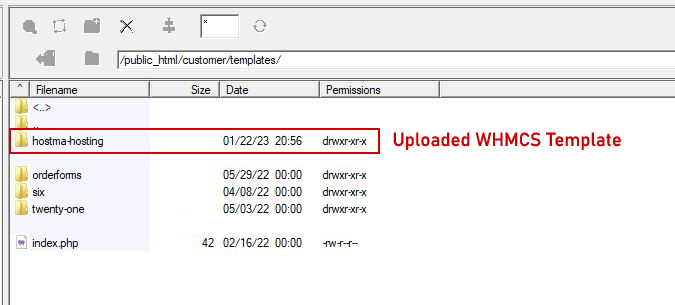
  • 1. Go to the path : ( your-public-root-directory/whmcs/templates )

  • 2. Upload your WHMCS template here.

  • 3. Unzip your uploaded zip file.

  • 4. Go through the screenshot for reference.

Step-2 - Activate your WHMCS template from the admin panel.
  • 1. Login to the WHMCS Admin panel.

  • 2. Click the setting icon right side of the top nav bar.

  • 3. Click the system settings then you will find the General Settings option.

  • 4. Go through the Genaral settings.

  • 5. Select your uploaded template here.

Important License Terms
  • You cannot charge from your end product end users with a Regular License.
  • If you want to collect payments from end product end users then you must buy an Extended License for each of the end product.
  • You must buy one license for one domain only.(i.e Either Regular or Extended)
  • You cannot use Multi Domain,Multi Client, Multiple end Products with any of the licenses (i.e Either Regular or Extended).

for more details please click the link